
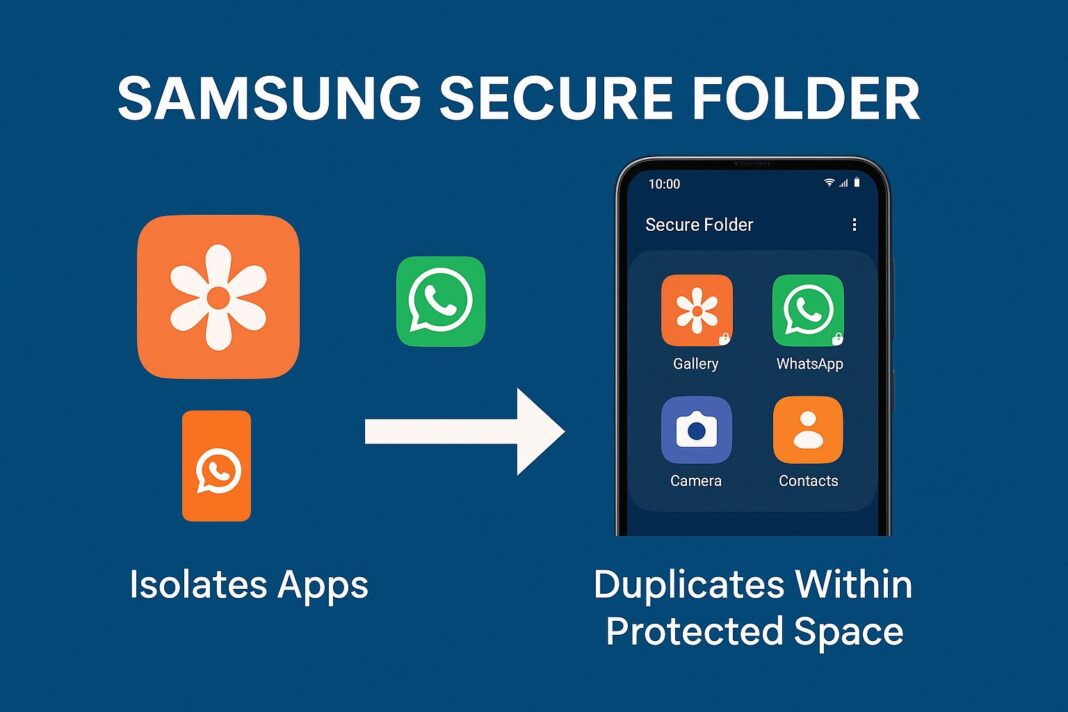

Many Android and Samsung users want a simple way to lock individual apps like WhatsApp, Instagram, or Gallery, without relying on Samsung’s Secure Folder, which can be bulky and restrictive.
One of our readers, Meshack Mahugu, recently shared this relatable experience:
“Recently, I purchased a Samsung A16, but I am finding it difficult to lock my apps. Samsung has a way of hiding apps through a Secure Folder option, which is not pleasing to me. Kindly, I’m looking for a third-party app that will help me lock my apps without compromising my data.”
If you’re facing the same challenge, this guide will show you how to lock apps, protect your privacy, and skip the hassle of using Secure Folder.
Samsung’s Secure Folder is protected by Knox and is good for keeping sensitive data in a private sandbox. But for regular users who just want to lock apps in place without duplication, it can be frustrating.
Read: This Samsung Security Update Could Change How You Use Your Phone
Common Limitations:
- It duplicates apps, so you have to reconfigure them.
- You can’t open links or share files easily between Secure Folder and your regular apps.
- It’s not intuitive for users who want a quick lock-and-go solution.
The Best Alternatives: How to Lock Apps Without a Secure Folder
The good news is you can install third-party app lockers from the Google Play Store to lock your apps directly, using a PIN, fingerprint, or pattern.
These tools work outside Secure Folder and maintain seamless app functionality.
Here are the top picks:
1. AppLock by DoMobile Lab
- Lock apps like WhatsApp, Facebook, Photos, etc.
- Use a pattern, PIN, or fingerprint.
- Take intruder selfies when someone tries to unlock.
- Add a fake cover (like a crash screen) to confuse snoopers.
2. AppLock Fingerprint (SpSoft)
- Lock system settings, calls, or even Wi-Fi toggles.
- Displays fake error messages when someone opens a locked app.
- Takes selfies of intruders.

- Option to hide the app itself from the home screen.
Search “Smart AppLock SpSoft.”
How to Set It Up (Example: AppLock by SpSoft)
- Download the app from the Play Store.
- Open and set your PIN, pattern, or fingerprint.

- Select apps you want to lock (e.g., WhatsApp, Gallery).

- Grant the required Accessibility and Admin permissions.
- Go to Settings > Battery > Background usage limits, and make sure the app locker is set to “Never sleeping apps.”
This ensures your Samsung device doesn’t kill the locker app in the background, which is especially important for A-series phones like the A16.
Privacy & Security Tips
- Only download apps from the official Play Store.
- Review app permissions carefully.
- Avoid shady APKs or third-party websites.
- Choose apps that are frequently updated and have strong user ratings.
Regardless of which modern Android phone you use, you can easily and securely lock your apps without isolating them or creating duplicate versions.